Configuration
By default, the SDK uses the 30-second all-metrics preset with strict signal-quality checks. Try the options in the Playground .
For a regular scan, use the default measurement mode. To collect reference blood pressure readings or apply a saved calibration, choose a blood pressure calibration mode.
Pass session settings at initialization, or use a runtime setter where one is shown below. To manage settings centrally, assign a remote configuration to your license in the Shen AI Platform. If you issue short-lived tokens, request a fresh token to pick up changes. Remote settings take precedence over local settings at initialization.
For scan controls, see Starting, stopping, and resetting a scan.
Measurement presets
A preset determines which metrics the SDK measures and whether the scan ends after a fixed time or continues until you stop it.
| Preset | Measurement |
|---|---|
THIRTY_SECONDS_ALL_METRICS | 30 seconds, all available metrics (default) |
FOURTY_FIVE_SECONDS_ALL_METRICS | 45 seconds, all available metrics |
ONE_MINUTE_ALL_METRICS | 60 seconds, all available metrics |
ONE_MINUTE_HR_HRV_BR | 60 seconds, heart rate, HRV, and breathing rate |
QUICK_HR_MODE | 10 seconds, heart rate |
INFINITE_HR | Continuous heart rate |
INFINITE_METRICS | Continuous heart rate, HRV, and Stress Index |
CUSTOM | Custom duration and metrics |
To use a one-minute scan, set the preset before starting the next measurement.
shenaiSDK.setMeasurementPreset(shenaiSDK.MeasurementPreset.ONE_MINUTE_ALL_METRICS)Read the selected preset with shenaiSDK.getMeasurementPreset().
Heart rate variability (HRV) measures how much the time between heartbeats varies. A 60-second scan can capture slower changes in beat timing that a 30-second scan misses. When comparing HRV across scans, use the same measurement window each time.
Custom measurement configuration
Applying a custom configuration also selects the custom preset. This example requests heart rate during a 45-second scan and systolic and diastolic blood pressure in the final results.
const { Metric } = shenaiSDK
shenaiSDK.setCustomMeasurementConfig({
  durationSeconds: 45,
  instantMetrics: [Metric.HEART_RATE],
  summaryMetrics: [Metric.SYSTOLIC_BP, Metric.DIASTOLIC_BP]
})
For continuous measurements, set infiniteMeasurement. The averaging windows are realtimeHrPeriodSeconds, realtimeHrvPeriodSeconds, and realtimeCardiacStressPeriodSeconds. Use healthIndices to request indices.
Available metric identifiers
- Heart and breathing —
HEART_RATE,HRV_SDNN,BREATHING_RATE,CARDIAC_STRESS,PNS_ACTIVITY,CARDIAC_WORKLOAD. - Blood pressure —
SYSTOLIC_BP,DIASTOLIC_BP,BLOOD_PRESSURE,BLOOD_PRESSURE_SCALE. - Age and body mass index —
AGE,BMI.
| Option | What it controls |
|---|---|
| Duration | A custom timed scan accepts 10 to 120 seconds. Omitting the duration uses 60 seconds. Below 15 seconds, only heart rate is available. |
| Live and final metrics | Metrics during the scan and in the final results, respectively. Include systolic, diastolic, combined blood pressure, or the V2 blood pressure scale in either list for the SDK to compute blood pressure results. |
| Health indices | Which health indices to include. Some also require user-supplied factors. |
| Continuous measurement | Continue until stopped. Live metrics are heart rate, HRV, and Stress Index. |
| Heart-rate window | Heart-rate averaging window, 4–60 seconds (default 10). |
| HRV and Stress Index windows | HRV and Stress Index windows in continuous mode, 10–60 seconds each (default 30). |
The embedded UI hides the progress bar during a continuous scan.
Signal quality
Movement or uneven lighting can obscure the pulse signal in the video, making estimates less reliable.
Strict precision is the default. It withholds results when signal quality falls below a threshold evaluated against reference ECG recordings. Relaxed precision can return best-effort estimates even when the signal is poor. In relaxed mode, minimum heartbeat confidence is configurable from 0 to 1 (default 0.5). Higher values are more restrictive.
Blood pressure has a separate quality check that is off by default. With this check enabled in strict mode, a completed scan can return heart rate and HRV while omitting blood pressure if its quality is too low.
Camera-based motion processing (BCG) is on by default. If your device is short on memory or processing power, set enableBcg (EnableBcg in .NET) to false at initialization. Metrics that use this motion signal will then run without it.
Use setPrecisionMode and setRelaxedModeConfidenceThreshold to change precision and heartbeat confidence. To enable the blood pressure check, call shenaiSDK.setApplyPrecisionModeToBloodPressure(true). Read the active settings with getPrecisionMode(), getRelaxedModeConfidenceThreshold(), and getApplyPrecisionModeToBloodPressure().
Measurement conditions
Use the blocking list for checks that must pass before a scan starts. Use the warning list for checks that should prompt the person while still allowing the scan to start. See Measurement conditions for the available checks and their defaults.
Each setter replaces its list. To preserve existing checks, read the current list before adding or removing a condition. A condition in both lists blocks the scan. A condition in neither list is ignored.
Keep the current checks, require a visible forehead before Start, and warn when glasses are detected.
const { FOREHEAD_VISIBLE, GLASSES_NOT_DETECTED } = shenaiSDK.MeasurementEnvironmentCondition
const blockers = shenaiSDK.getBlockingMeasurementConditions()
if (!blockers.includes(FOREHEAD_VISIBLE)) {
  shenaiSDK.setBlockingMeasurementConditions([...blockers, FOREHEAD_VISIBLE])
}

const warnings = shenaiSDK.getWarningMeasurementConditions()
if (!warnings.includes(GLASSES_NOT_DETECTED)) {
  shenaiSDK.setWarningMeasurementConditions([...warnings, GLASSES_NOT_DETECTED])
}For camera-based motion processing, see Signal quality. For the continuous-mode buffer, see Long-running scans.
Long-running scans
In continuous mode, the SDK keeps 300 seconds of recent signal data by default. Set infiniteModeBufferRetentionSec (InfiniteModeBufferRetentionSec in .NET) at initialization to change this window. A value of zero or less disables the limit and allows memory use to grow.
On mobile, set rotation and frame dimensions at initialization. See the mobile example below and Frame format and timing.
Camera and frame input
On web and mobile, the SDK can open the camera for you or use video your app already captures. On headless Linux, your app supplies the frames for each scan.
The SDK opens the user-facing camera by default. Use setCameraMode with CameraMode.FACING_USER, CameraMode.FACING_ENVIRONMENT, or CameraMode.OFF to select the front camera, switch to the rear camera, or stop capture.
On desktop, use selectCameraByDeviceId to choose a camera by ID. Pass true if the camera faces the user or false if it faces away. In this mode, the swap button cycles through the available cameras.
const devices = await navigator.mediaDevices.enumerateDevices()
const camera = devices.find(device => device.kind === "videoinput")
if (camera) {
  // This example assumes the first camera faces the user.
  shenaiSDK.selectCameraByDeviceId(camera.deviceId, true)
}
If your app already has a MediaStream, pass it directly to the SDK. For example, shenaiSDK.setMediaStream(stream, true) uses a stream from a user-facing camera. Both camera-selection methods set the camera mode for you. The swap button is disabled while the SDK uses your stream.
Read the requested mode with getCameraMode(). If capture fails, read getLastCameraError() and follow Web camera troubleshooting.
Frame cropping
By default, the SDK keeps the incoming aspect ratio within its preferred range and otherwise crops toward 2:3. Set cameraAspectRatio at initialization or use setCameraAspectRatio(16 / 9) during the session for a 16:9 crop. Read the setting with getCameraAspectRatio(). Call setCameraAspectRatio(0) to restore automatic cropping.
To process the entire frame, set enableFullFrameProcessing at initialization or call setEnableFullFrameProcessing(true). Read it back with getEnableFullFrameProcessing(). Full-frame processing bypasses the crop ratio and processes more pixels per frame.
Camera errors
The camera mode reports what your app requested. If capture fails, read the last camera error. An empty error means there is no current startup failure, including when your app intentionally turned the camera off.
| Camera error | Meaning and recovery |
|---|---|
PERMISSION_NOT_GRANTED | The app or site lacks camera permission. Ask the user to allow access, then retry. |
INVALID_DEVICE_ID | The selected ID does not identify an available camera. Refresh the device list and select again. |
NO_CAMERA_DEVICE | The SDK could not find a suitable camera. Connect or enable one. |
DEVICE_UNAVAILABLE | The camera exists but cannot start. Check its connection and whether another app is using it. |
UNSUPPORTED_MODE | This platform does not support the requested mode. Choose a supported camera mode. |
UNKNOWN | The SDK could not identify the cause. Retry, then contact Support if capture still fails. |
Scan interface
By default, the SDK guides users through a scan and displays their results in its built-in interface. You can choose which screens appear and in what order, show or hide controls, and customize the colors and layout.
To show a disclaimer, then the measurement screen and results, pass these settings at initialization.
const { Screen } = shenaiSDK
const settings = {
  uiFlowScreens: [Screen.DISCLAIMER, Screen.MEASUREMENT, Screen.RESULTS]
}
During a session, use getScreen() and setScreen() to read or change the screen. To hide the embedded Start/Stop button, call shenaiSDK.setShowStartStopButton(false). Set colors with setCustomColorTheme(theme).
Screen order
Set uiFlowScreens to an ordered list of the screens your users should see. A nonempty list overrides screen flags such as showDisclaimer, enableSummaryScreen, and enableHealthRisks. With an empty list, those flags determine the default flow.
The seven screens you can put in the list are DISCLAIMER, ONBOARDING, MEASUREMENT, DASHBOARD, RESULTS, HEALTH_RISKS_EDIT (the factors form), and HEALTH_RISKS (the indices).
- To go straight from results to indices, omit the risk-factor form and supply any required factors in advance.
- To collect factors at a different point in your app, open the form separately and reuse the same user profile.
- To show only the dashboard, use it as the sole screen. The dashboard is supported only in a single-screen flow. Leaving it emits
USER_FLOW_FINISHED.
When reading the current screen, you can also see INITIALIZATION, INSTRUCTIONS, CALIBRATION_ONBOARDING, CALIBRATION_DATA_ENTRY, or CALIBRATION_FINISH. Listen for SCREEN_CHANGED to track user navigation. Programmatic screen changes do not emit this event. See Tracking the measurement.
Onboarding
The default, SHOW_ONCE, shows onboarding once per user. Set onboardingMode to SHOW_ALWAYS to repeat it or HIDDEN to skip it. In Swift and Dart the values are showOnce, showAlways, and hidden.
UI elements
Set these flags at initialization. During a session, you can read them with their getters and change all except showDisclaimer. For example, hide the Start/Stop button when your app provides its own controls.
| Setting | Controls |
|---|---|
showUserInterface | Embedded controls and result panels |
showStartStopButton, showInfoButton | Start/Stop and information buttons |
enableStartAfterSuccess | Show the option to start another scan from the embedded UI after a successful measurement |
showFacePositioningOverlay, showVisualWarnings | Face alignment guidance and signal-quality warnings |
showFaceMask, showBloodFlow | Face mesh and blood-flow overlays |
enableCameraSwap | Camera switch button |
showDisclaimer | Disclaimer screen in the default flow |
Color theme
Use a custom color theme to match the embedded interface to your app’s colors.
| Theme field | Where the color appears |
|---|---|
themeColor | Progress bar and Start/Stop button text |
textColor, backgroundColor | Results text and the background around the interface |
tileColor | Result tiles, face-positioning overlay, and the backgrounds of the Start/Stop, camera swap, and info buttons |
buttonMainColor (optional) | Left end of the main button gradient, onboarding dots, and secondary button text |
buttonSecondaryColor (optional) | Right end of the main button gradient |
{
  "themeColor": "#1446A0",
  "textColor": "#162337",
  "backgroundColor": "#FFFFFF",
  "tileColor": "#E8EEF8"
}
UI version
Select the layout with uiVersion. V1 shows numeric results. V2, the default layout, adds scales and context. V3 uses wellness-oriented labels, displays in English, and hides out-of-range indicators. Changing the layout keeps the same SDK edition. Use the combined blood pressure metric to show systolic and diastolic values together. The BLOOD_PRESSURE_SCALE tile is specific to V2.
Compare V2 and V3 screens and result labels
| Screen | V2 | V3 |
|---|---|---|
| Results | 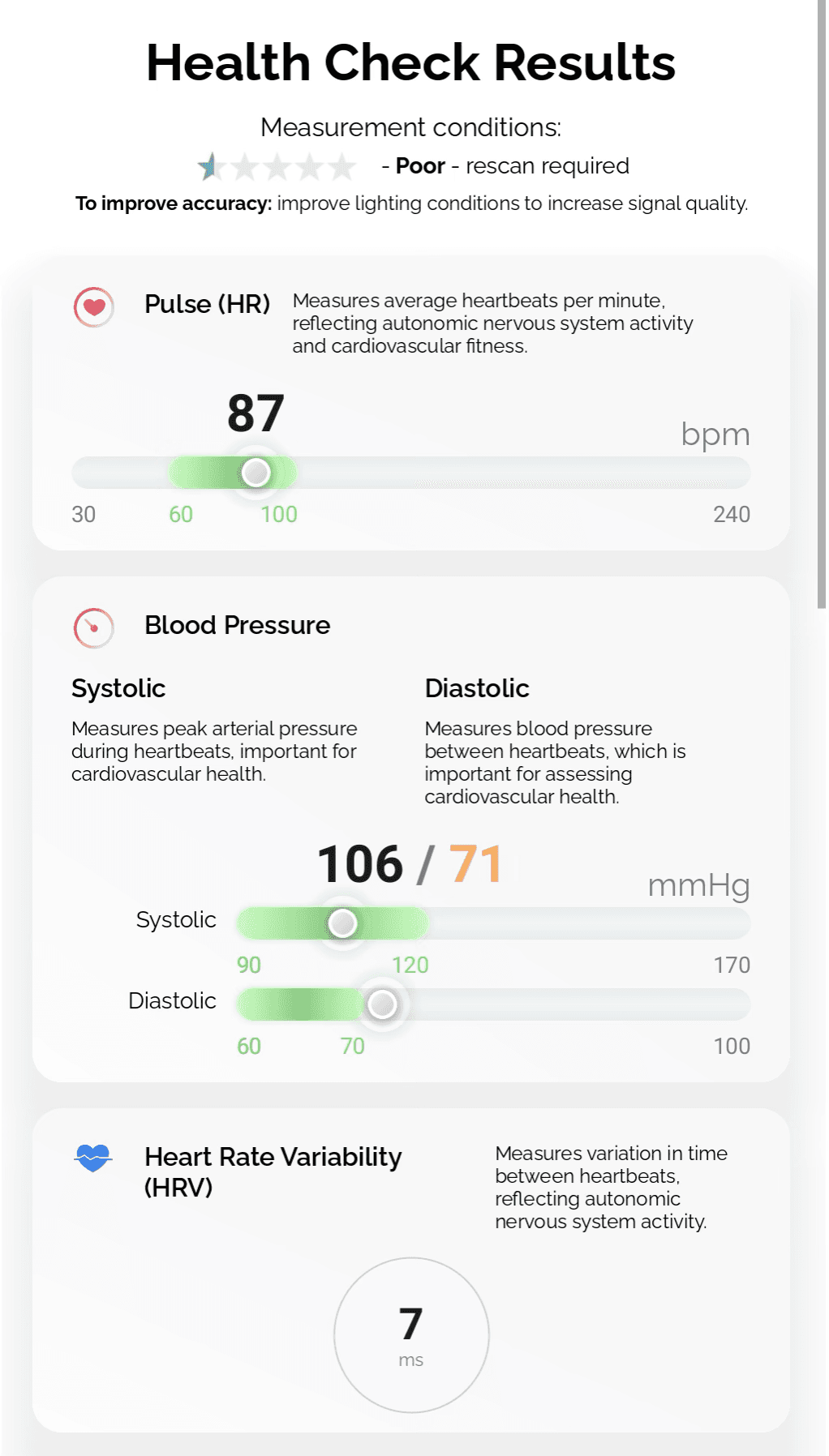 | 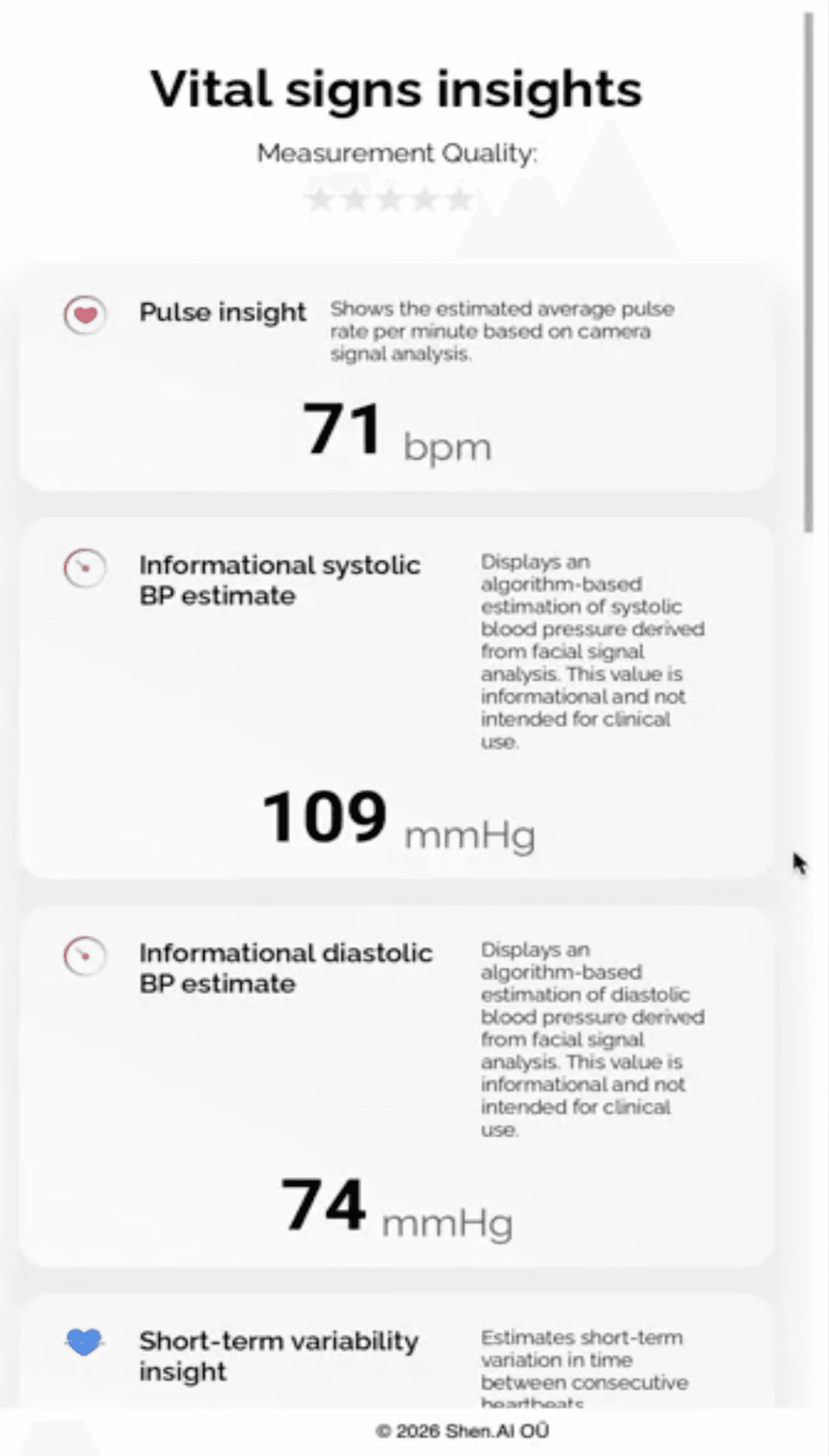 |
| Indices | 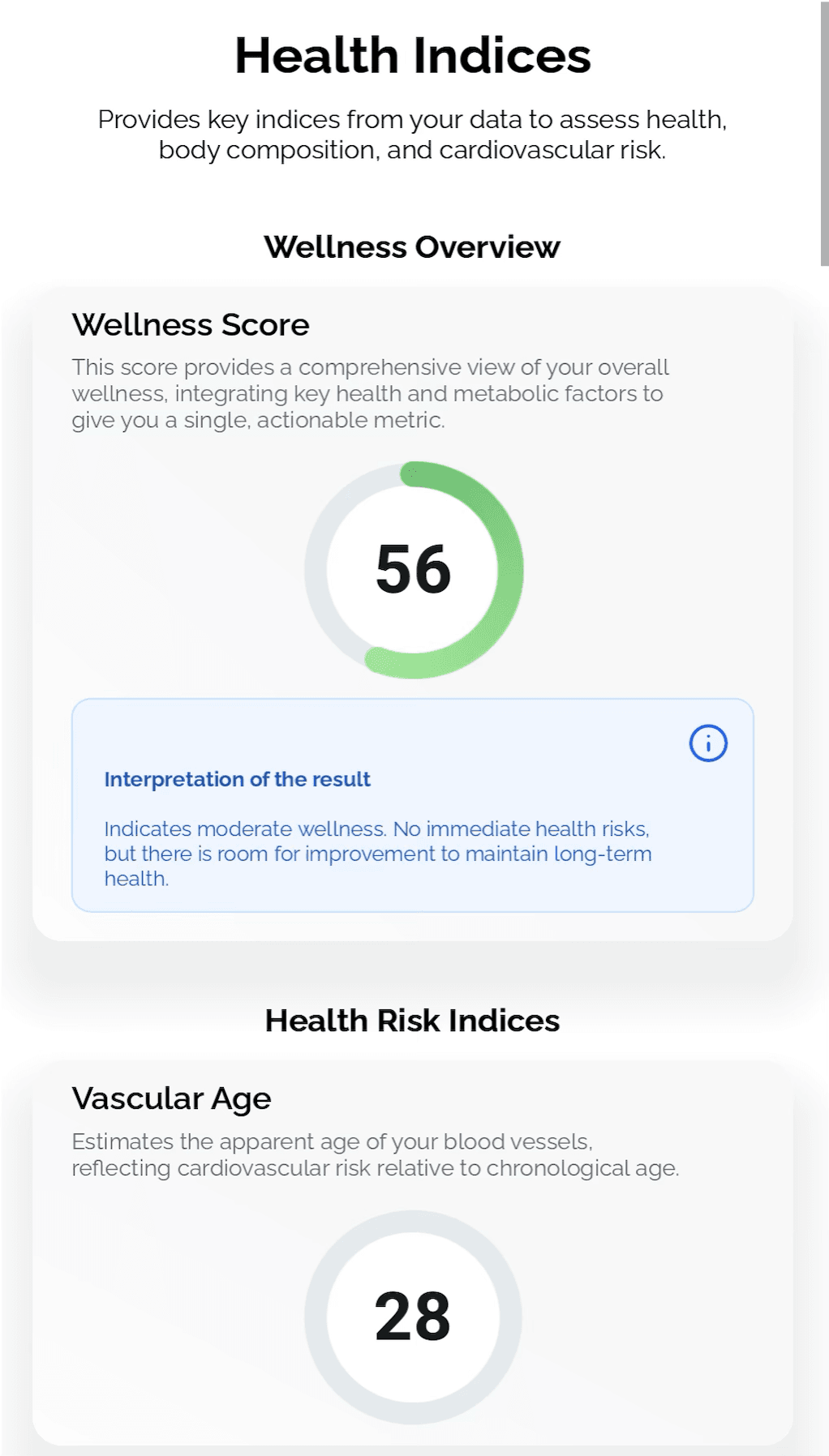 | 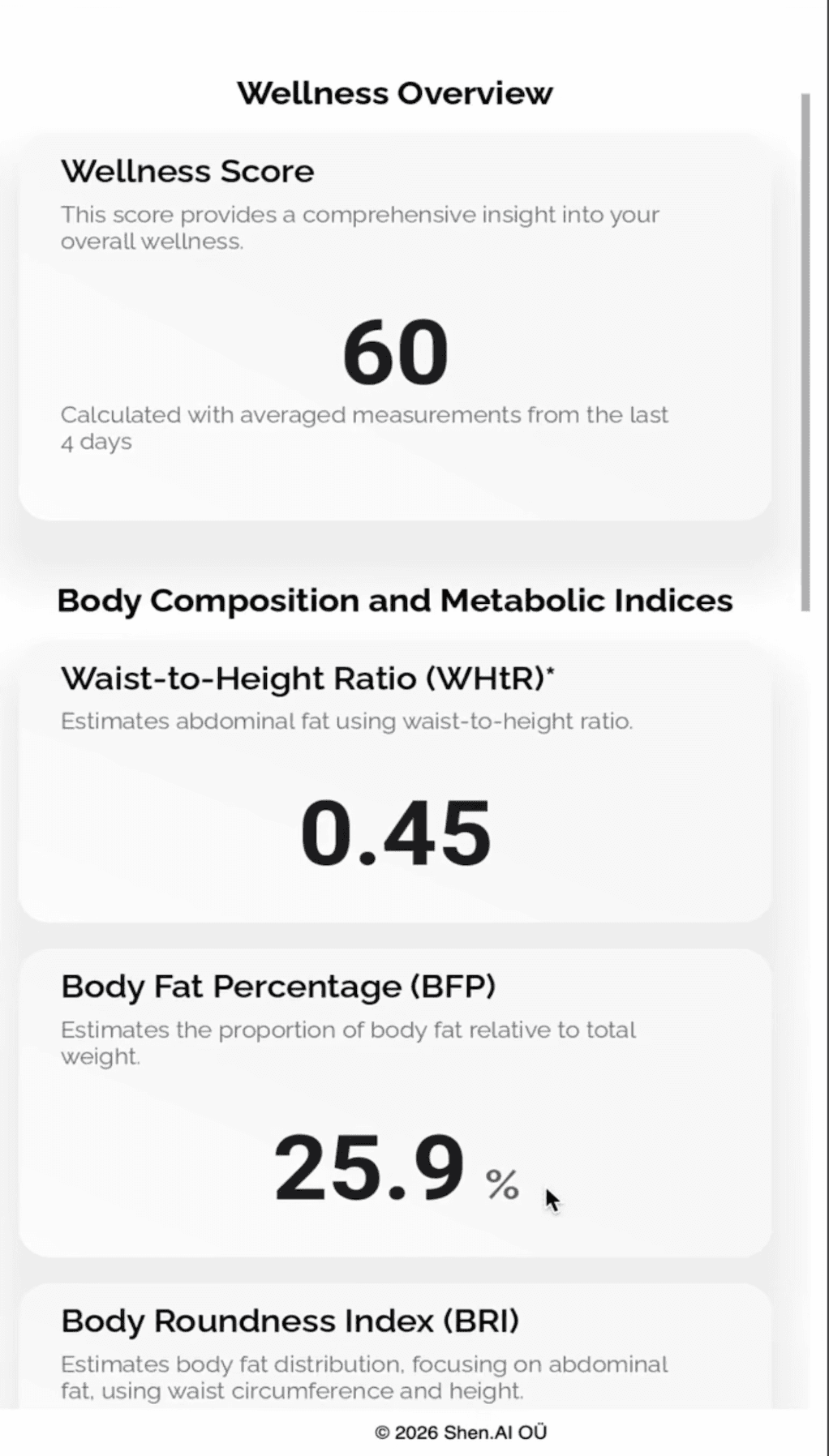 |
| V1 and V2 label | V3 label |
|---|---|
| Heart Rate | Pulse Insight |
| Heart Rate Variability | Short-term Variability Insight |
| Breathing Rate | Breathing Rhythm Insight |
| Stress Index | Stress Response Index |
| Parasympathetic Activity | Parasympathetic Activity Insight |
| Cardiac Workload | Cardiovascular Effort Index |
| Blood Pressure | Informational BP Estimate |
| BMI classification | Body Mass Score |
The API uses the same identifiers for these metrics in all three layouts. V3 also changes which results your app can receive.
| Result | Availability in V3 |
|---|---|
| Estimated age (API only in V1 and V2) | Unavailable |
| Vascular age, atherosclerotic cardiovascular disease risk, cardiovascular event risk, and cardiovascular risk score | Unavailable |
| Hypertension risk, diabetes risk, and fatty liver disease risk (NAFLD) | Unavailable |
| Wellness Score 2.0 | Available |
| Waist-to-height ratio, body fat percentage, body roundness index, A Body Shape Index, and conicity index | Available |
| Basal metabolic rate and total daily energy expenditure | Available |
Available results depend on the selected metrics, required inputs, and license.
Language
You can change the language of the embedded interface in V1 and V2. V3 always uses English.
Use a supported language or locale code, such as es (Spanish), fr-CA, or zh-Hans. PDF reports use the SDK language selected when you generate them.
shenaiSDK.setLanguage("es")Supported languages and locale codes
| Language | Local name | Code |
|---|---|---|
| Arabic | العربية | ar |
| Croatian | hrvatski | hr |
| Czech | čeština | cs |
| Dutch | Nederlands | nl |
| English | English | en |
| Filipino | filipino | fil |
| French | français | fr |
| French (Canada) | français (Canada) | fr-CA |
| German | Deutsch | de |
| Hebrew | עברית | he |
| Hindi | हिन्दी | hi |
| Hungarian | magyar | hu |
| Italian | italiano | it |
| Japanese | 日本語 | ja |
| Kazakh | қазақша | kk |
| Korean | 한국어 | ko |
| Lithuanian (Lithuania) | lietuvių (Lietuva) | lt |
| Polish | polski | pl |
| Portuguese | português | pt |
| Romanian | română | ro |
| Russian (Kazakhstan) | русский (Казахстан) | ru-KZ |
| Simplified Chinese | 简体中文 | zh-Hans |
| Slovak | slovenčina | sk |
| Spanish | español | es |
| Thai | ไทย | th |
| Traditional Chinese | 繁體中文 | zh-Hant |
| Turkish | Türkçe | tr |
Some translations are machine-generated. Contact Shen AI to suggest a correction or an additional language.
Health risk factors
Some health indices need inputs such as age, height, or weight. With local memory enabled, the SDK saves form edits by default and reuses them in later sessions for the same local profile. With an empty user ID, scans share the default profile on the device.
Pass risksFactors at initialization to prefill any fields you already know. Supplied values replace those fields in the form, and omitted fields keep their saved values. To keep future edits out of local storage, set saveHealthRisksFactors to false. Disabling local memory also disables saving.
To clear saved form values for this profile, call shenaiSDK.clearHealthRisksFactors() after initialization. With local memory enabled, the values stay cleared in later sessions. Clearing them preserves measurement history and the setting for future edits.
Diagnostic video recording
Use diagnostic video recording only for internal testing. Keep it disabled for end users.
For troubleshooting, your app can request video recording on a license that permits diagnostic capture. The SDK can then upload the measurement video to Shen AI. Read back the recording state to confirm it was enabled. A minute of video can be about 200 MB, depending on the footage.
The SDK keeps a local copy of the recording during upload and retries. It deletes the local copy when the upload succeeds or fails permanently.
shenaiSDK.setRecordingEnabled(true)
const enabled = shenaiSDK.getRecordingEnabled()The embedded preview shows a red recording indicator while recording is active. On licenses with manual video upload enabled, tapping the heart-rate tile five times opens a confirmation prompt for the current measurement.